
One long recording should not hide the useful part.
Most apps give you the audio and leave the rest to you. You still have to listen back, work out what mattered, write down time stamps, and more.
Highlight works differently.
Mark the moment while it is happening. Come back to it fast later. Easily share it with others so they can hear what mattered for themselves. It is a better way to work with recordings when some parts matter more than the rest.
Catch it. Find it. Share it.
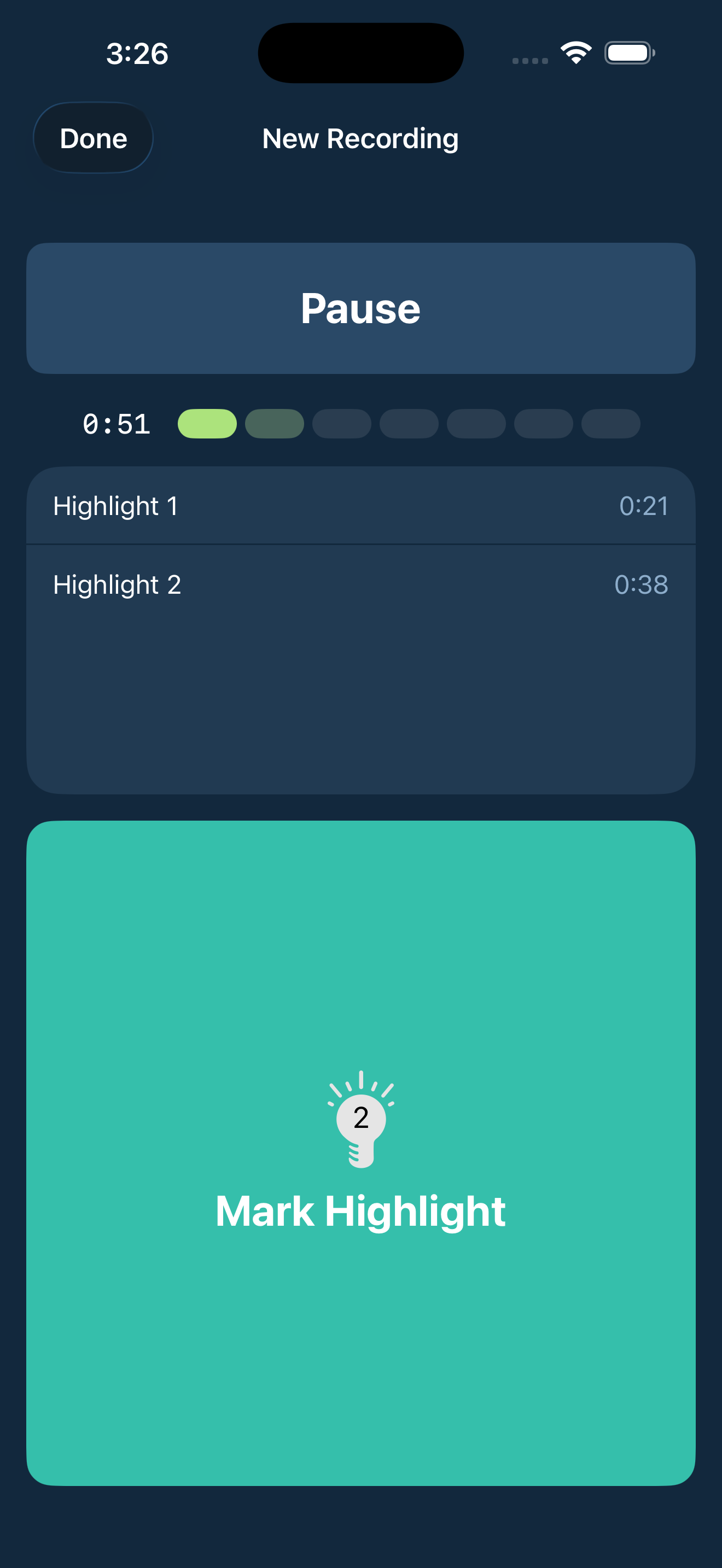
Mark it when it happens
You hear the moment. You tap the screen. Highlight marks it on the spot. No rewinding later. No guessing where it was.
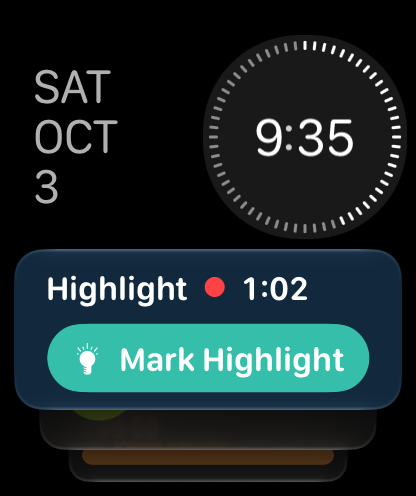
Or skip unlocking your phone at all. While you’re recording, mark a highlight right from your iPhone Lock Screen, or from your wrist with Highlight in the Apple Watch Smart Stack. Great for interviews, meetings, and conversations where tapping your phone can break the flow.
Skip the long replay
One long recording is fine until you need one specific moment. Highlight lets you jump straight back to the parts that mattered.
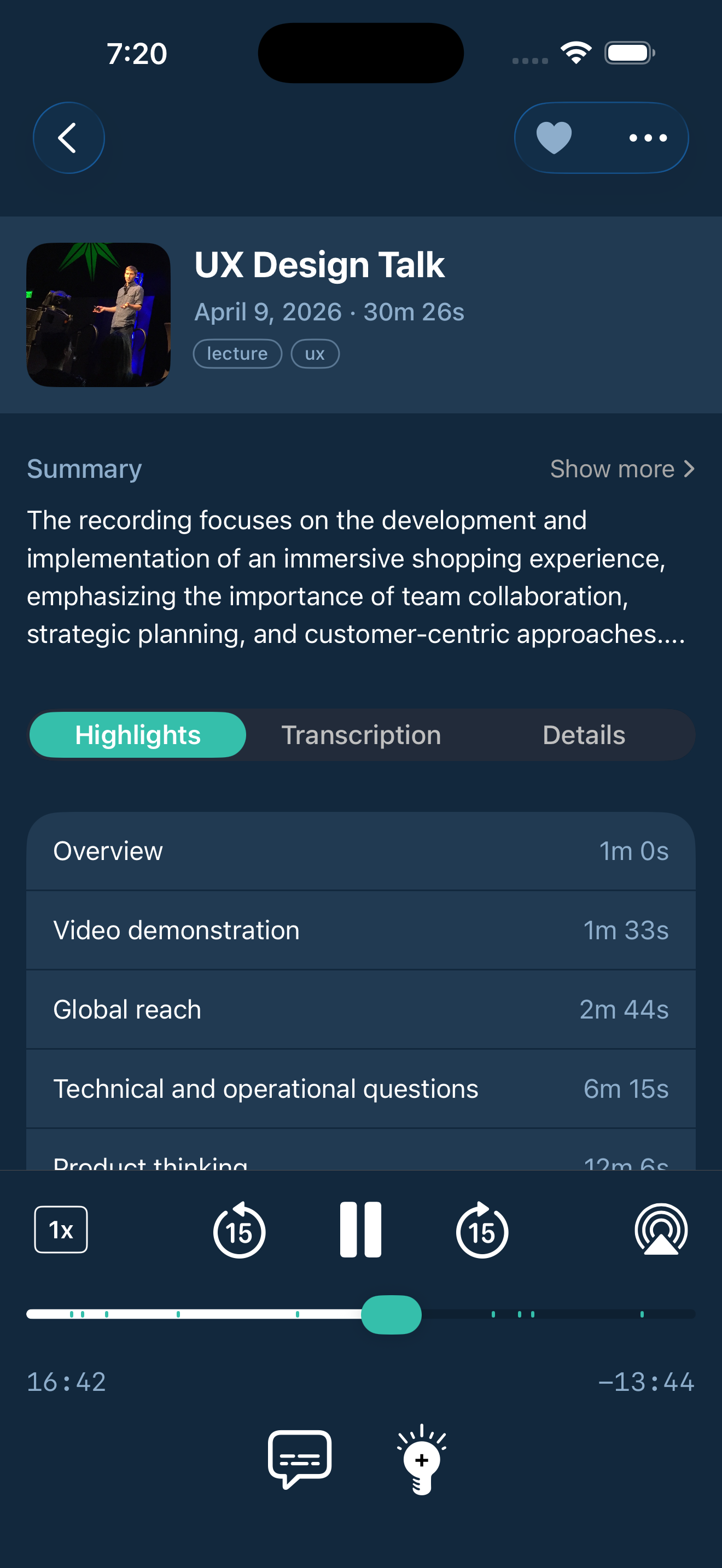
Share the moment
Someone doesn’t need your whole recording to hear the part that mattered.
Share an individual highlight and Highlight creates an audio clip of that moment. Choose exactly what to include, preview it, and add the matching transcript text if you want.
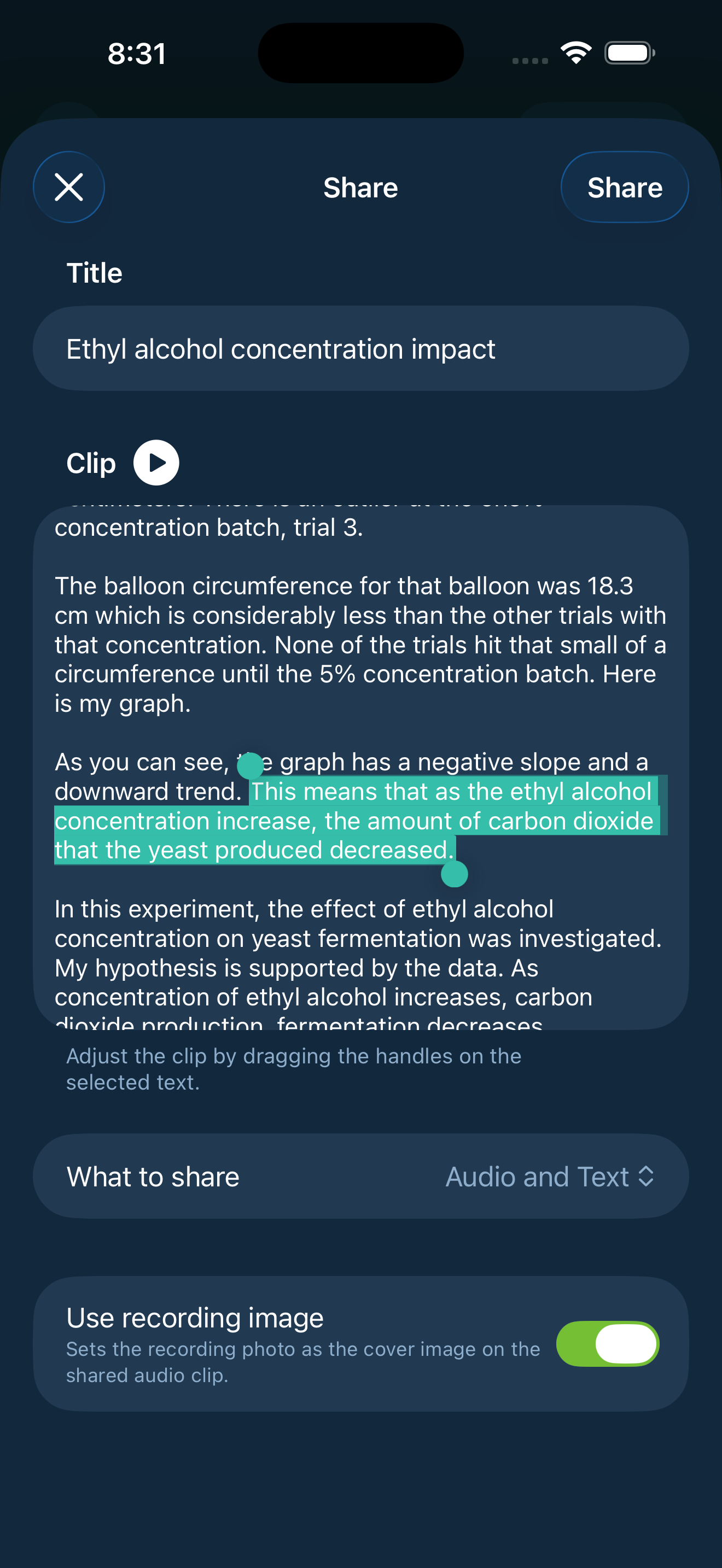
More ways to work with a recording
Follow Along
Read it. Hear it. Jump to it. The transcript highlights the words being spoken and lets you tap any paragraph to move to the exact part you want to hear.
Press and hold any sentence to play it, add a highlight, or share it as an audio clip.
Send it where people already work
Share a recording, or just a clip, with AirDrop, Mail, or Files. Pass along the part that mattered without adding extra steps.
Receive a Highlight recording? Tap it and it imports straight into your Highlight library.
Search beyond the title
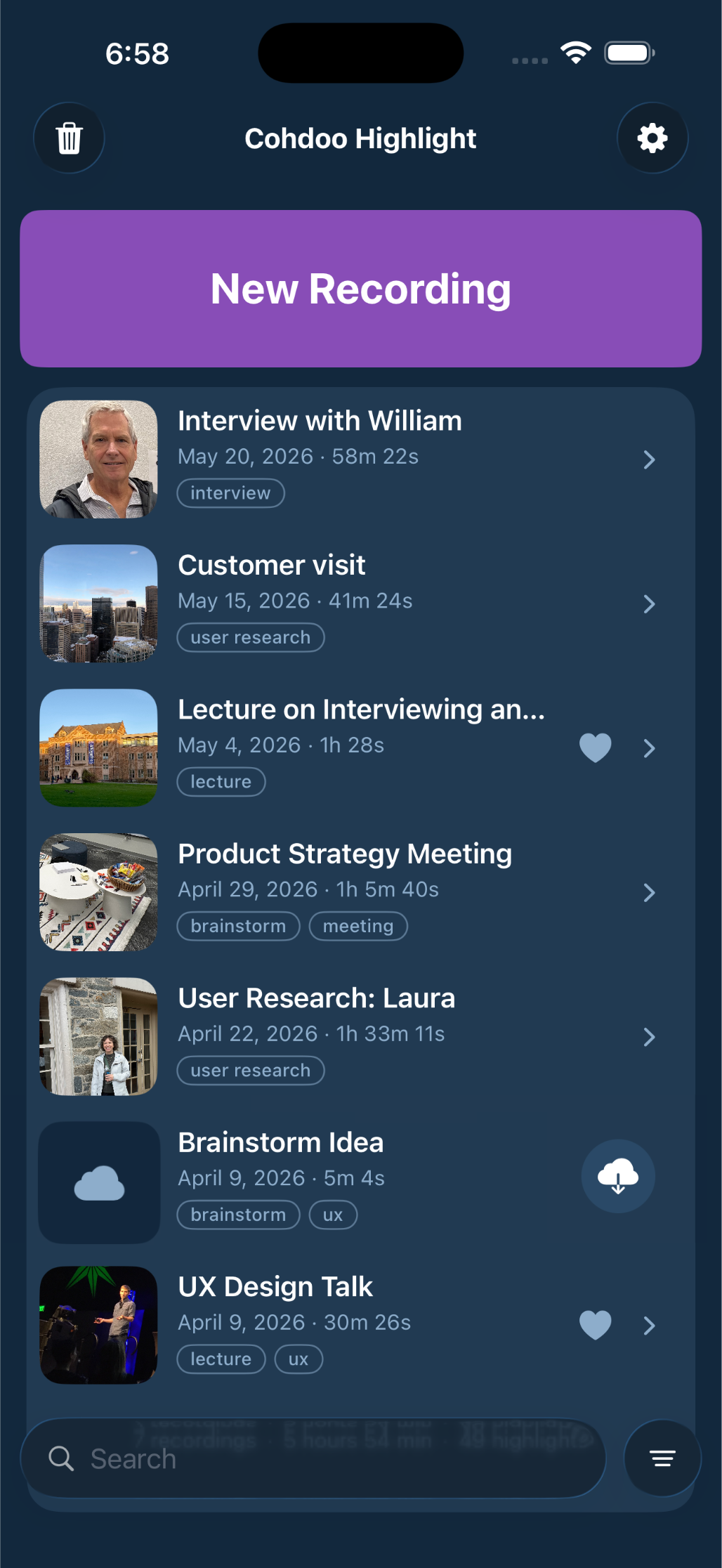
A growing library should not turn into a mess. Search titles, highlight names, notes, summaries, and tags to find the right recording fast.
Keep going when the conversation does not
Need to stop for a minute? Pause the recording and pick it back up when you are ready. Everything stays together.
Let the room hear it
Use AirPlay when other people need to hear the recording too. Play it on a speaker, in a meeting room, or anywhere the audio needs to leave your phone.
Save and export where your work lives
Save recordings to iCloud Drive, Files, or wherever you keep your work. Need the raw audio too?
Built into iPhone
Start with Siri
Say “Start a recording in Highlight” or “Start Highlight” anywhere Siri works.
Build your own shortcuts and automations with new actions to play recordings, get summaries, find recordings, and toggle favorites.
Find recordings with Spotlight
Search for a recording by name from the Home Screen and jump straight into it.
Record in one press
Add Highlight’s Start Recording control to Control Center, the Lock Screen, or the Action Button.
Smarter on iOS 27
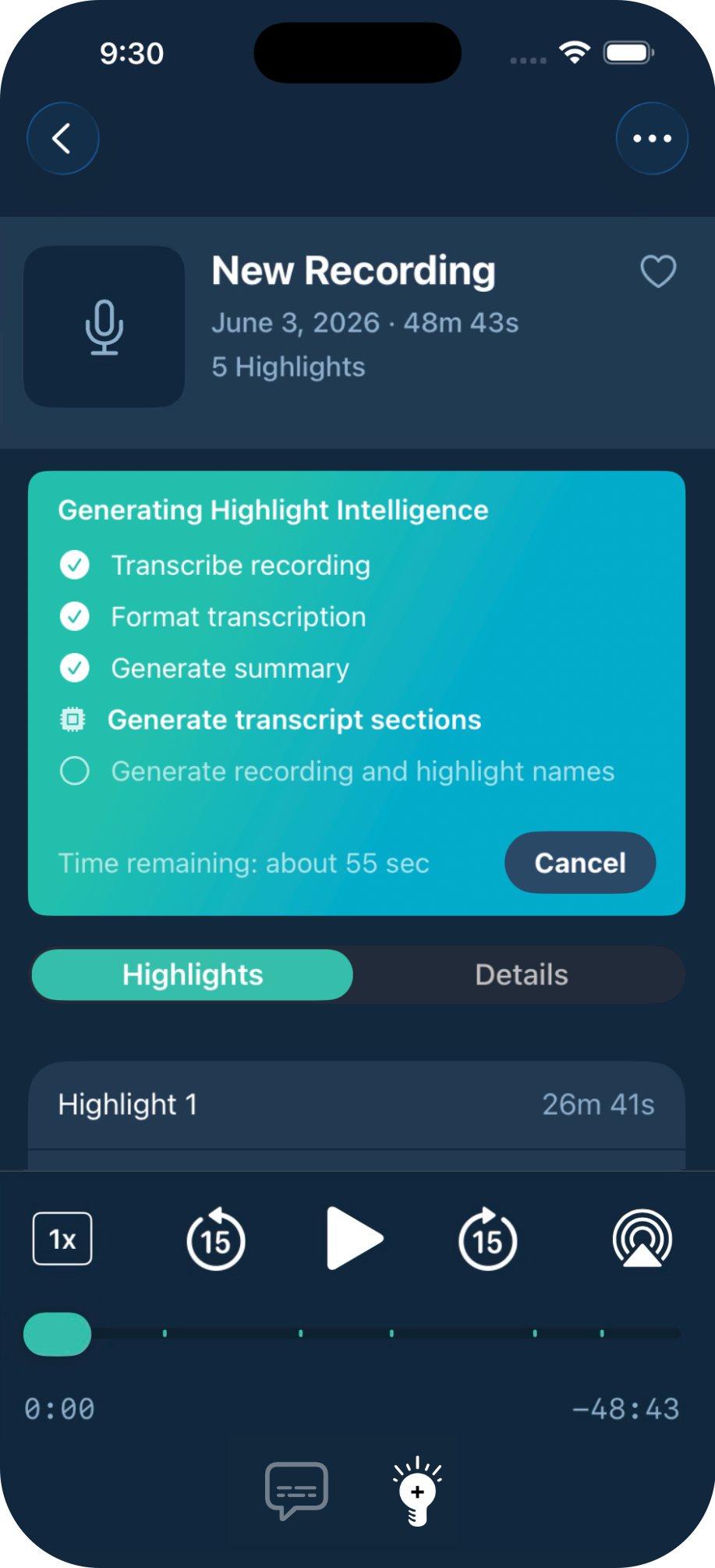
Highlight Intelligence turns recordings into more, right on device. Your recordings stay private and with you.
On iOS 27, iPhones that support Apple’s advanced on-device model process recordings faster and get more detailed summaries. Highlight Intelligence works fully on iOS 26 too.
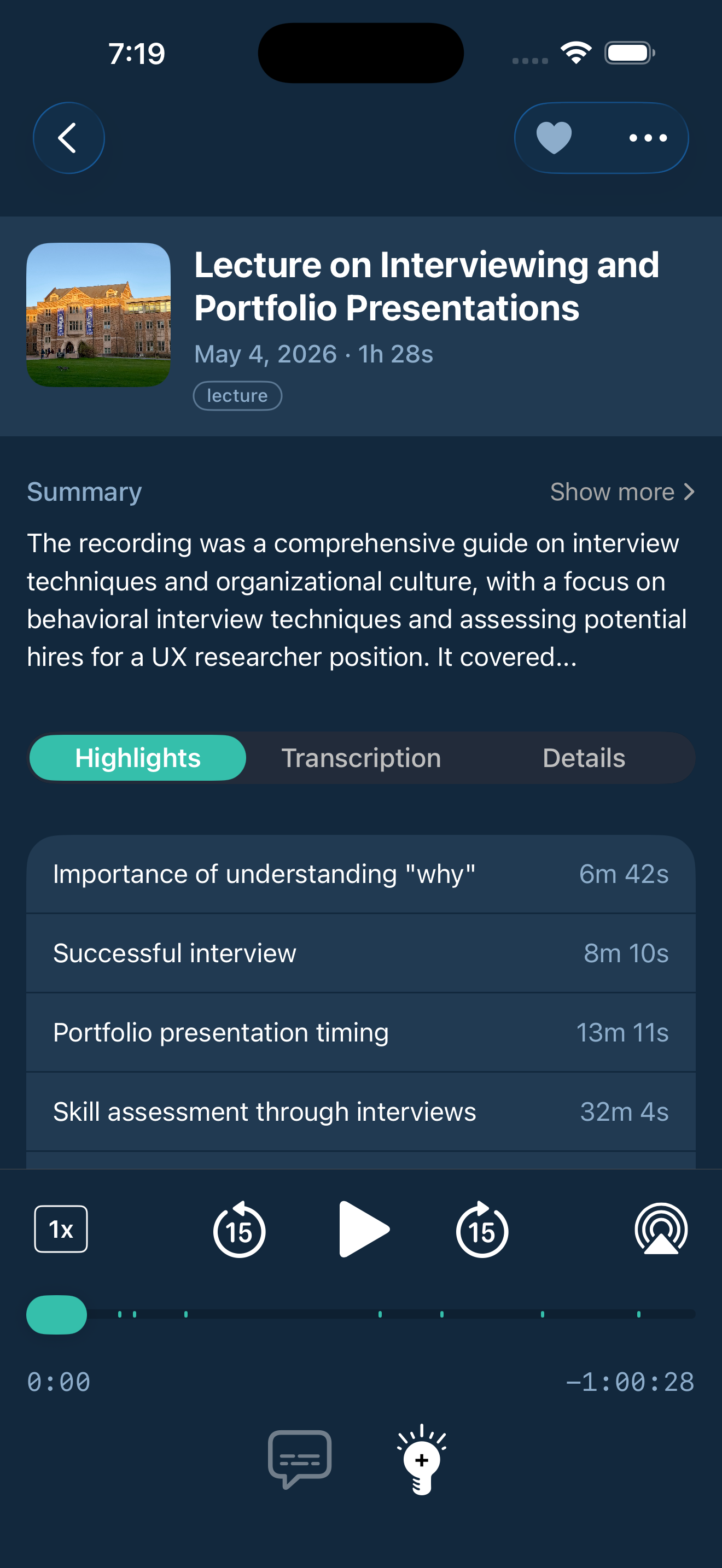
Every recording, on every device
Turn on iCloud Sync and your library follows you. Record on iPhone, pick it up on iPad, with the transcript, summary, highlights, and notes already attached.
Recordings from your other devices show up on the Home screen right away. Tap one to download it, or let Highlight fetch new ones automatically.
- Optional, and off until you turn it on
- Stored in your private iCloud account, never on Cohdoo servers
- Edits to names, notes, and tags sync without re-uploading audio
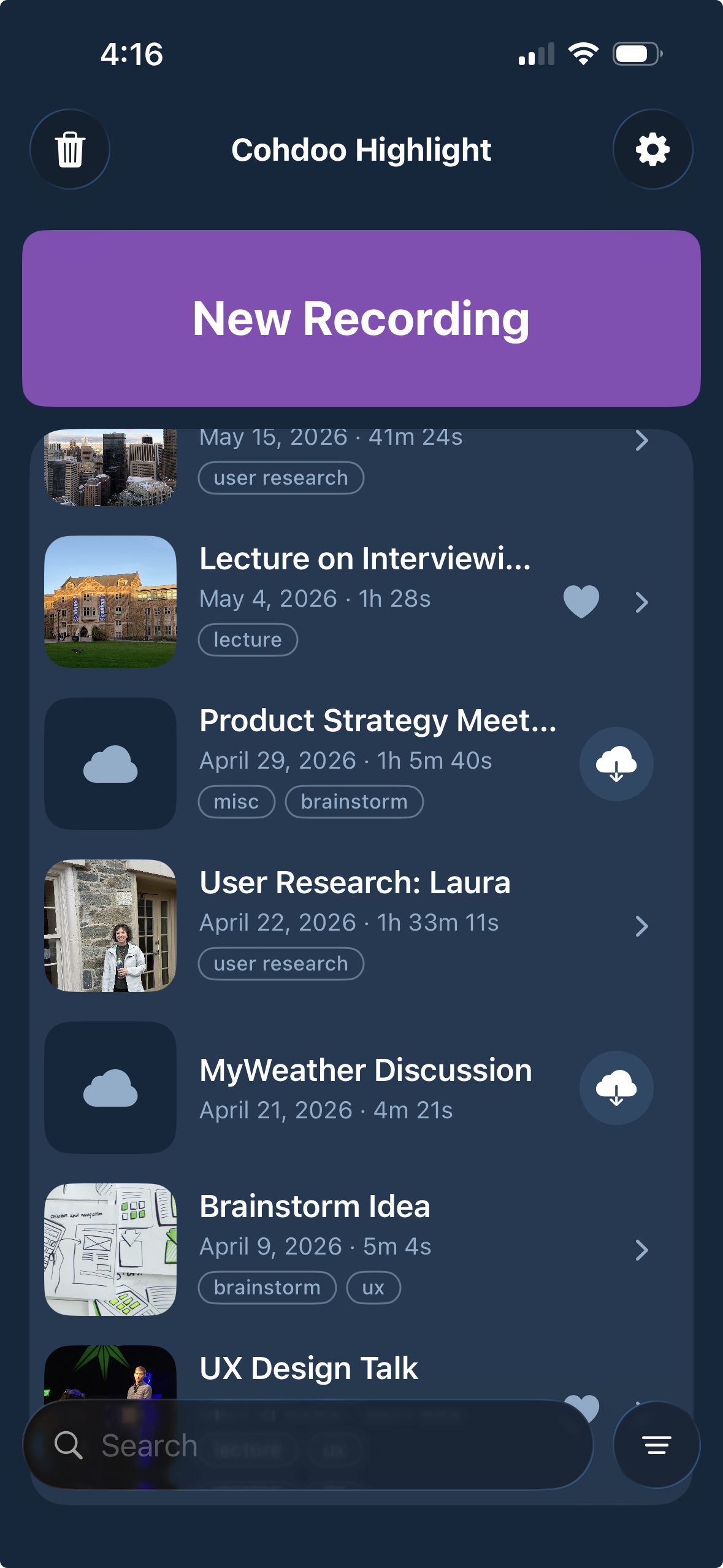
Take Highlight for a drive
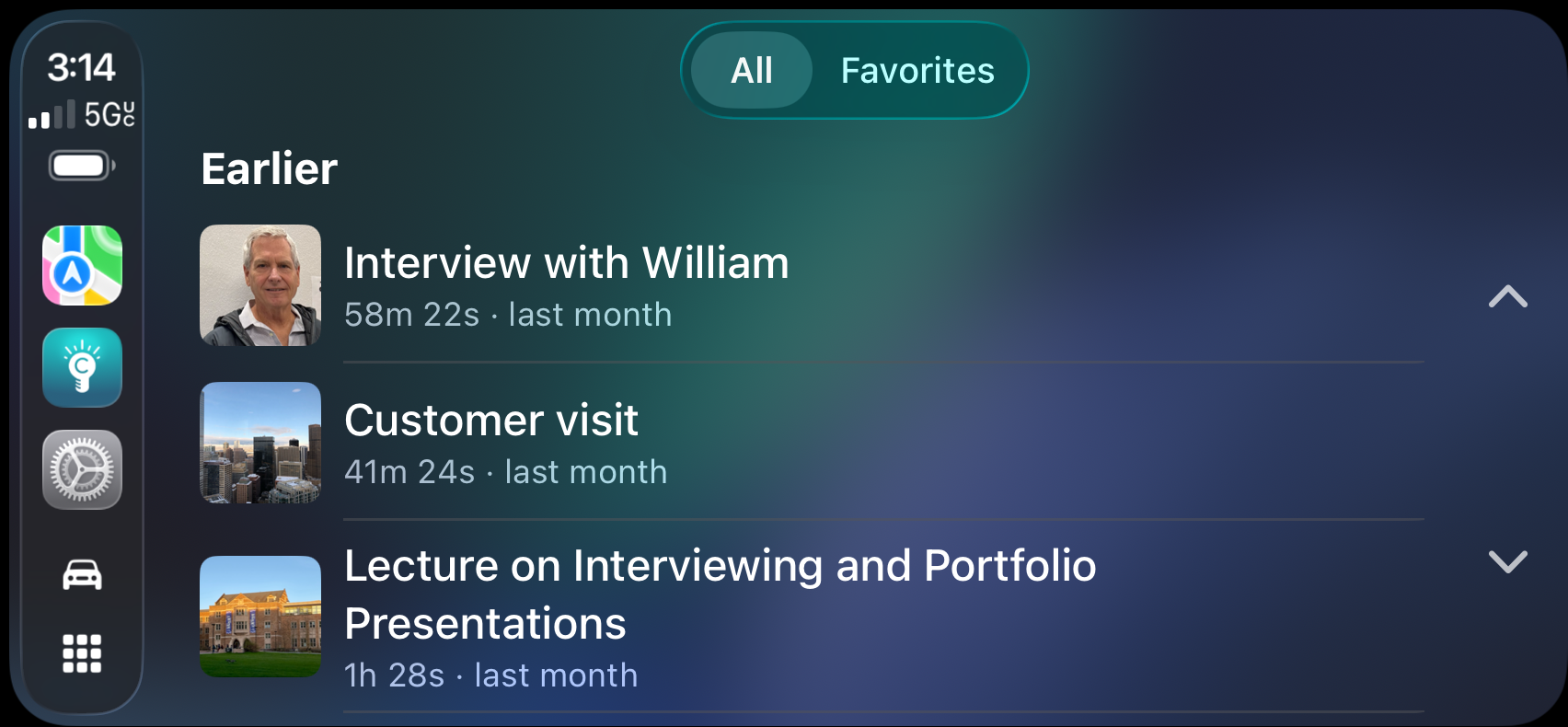
Highlight now works with CarPlay. Browse all your recordings, jump to favorites, and start playback with a tap, without picking up your phone.
Browse it all from the dash
See every recording and jump to your favorites, right from the CarPlay display.
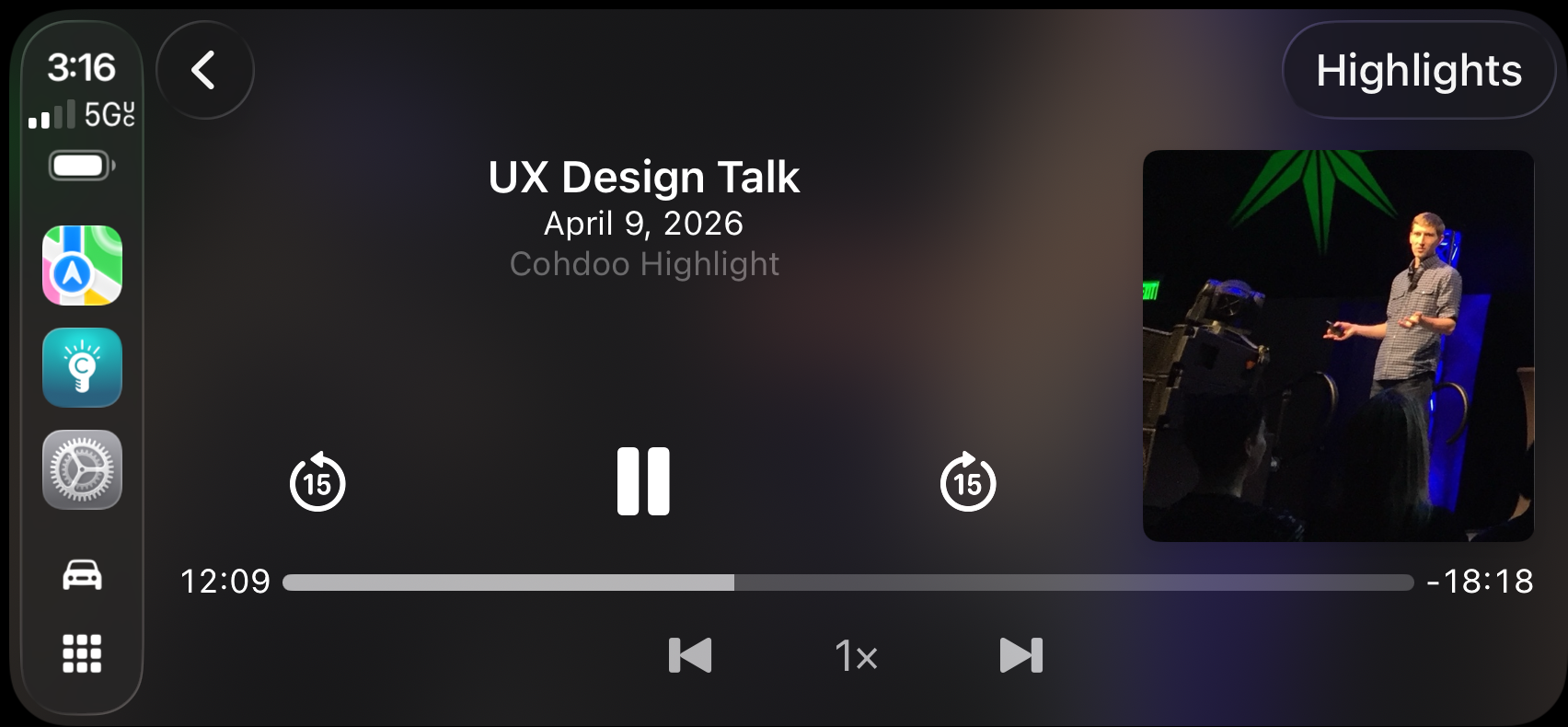
Play with a tap
Start playback with a single tap and keep your hands on the wheel.
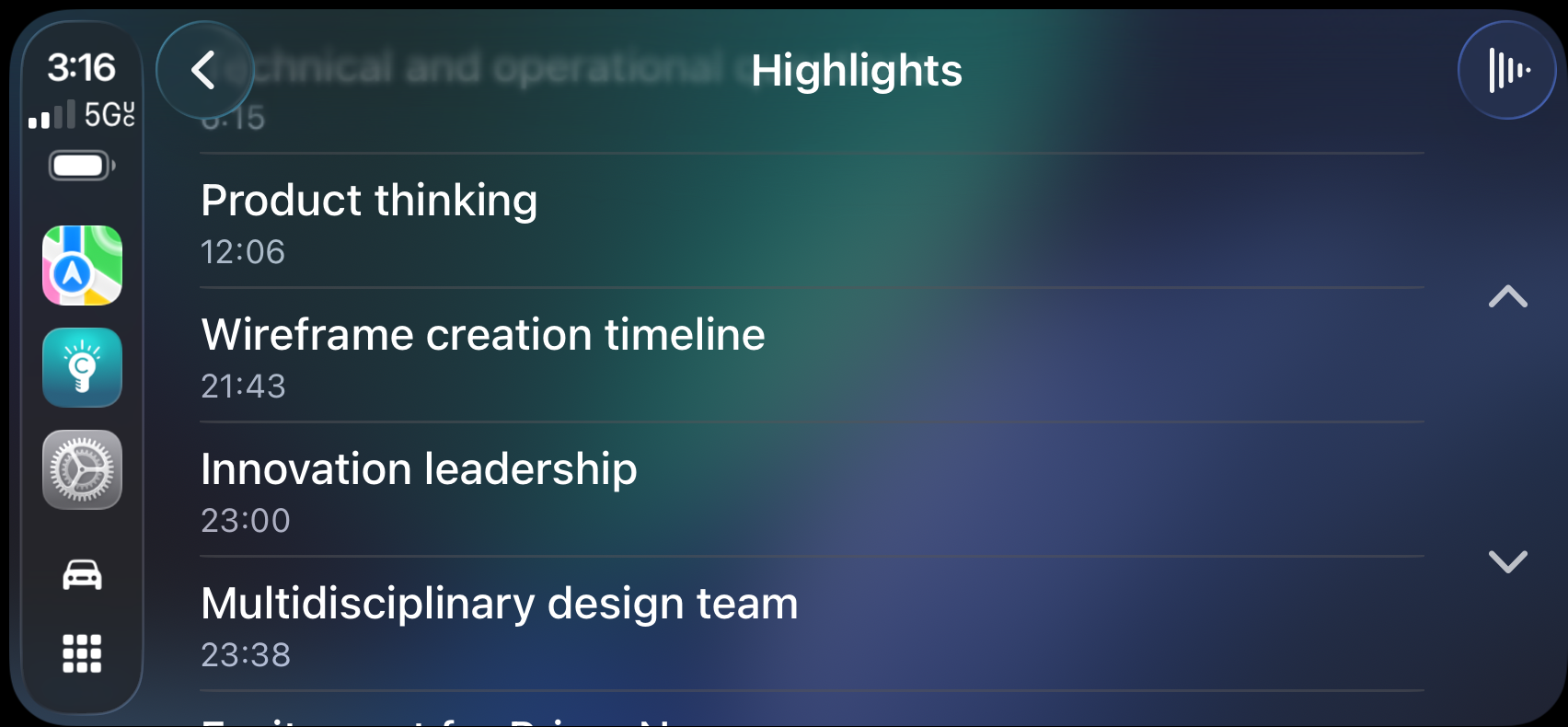
Skip to what matters
Your highlights appear as chapter markers, so you can jump straight to the parts that count.
Built on device. Built for privacy.
Highlight Intelligence runs on device using Apple Intelligence support where available. Your recording does not need to be sent somewhere else to create a transcript, a summary, auto-named Highlights, or a useful recording title.
It can also work without a network connection when the device supports it.
If you share a processed recording, people on devices without Apple Intelligence can still view the transcript, summary, auto-named Highlights, and generated title, because that content is already included.
What people said about the original Highlight
From App Store reviews
I’ve been looking for something simple to point mark my interviews for ages. I finally found it.App Store review
Easy to use and incredibly versatile. Great for lectures, meetings, sermons, and anywhere you would normally take notes.App Store review
Highlight is amazingly simple to use. I keep finding new situations where it is invaluable.App Store review
Frequently asked questions
Can I leave Highlight while recording?
Yes. Recording continues if you leave the app. When you come back, you can keep adding highlights.
What happens if I get a phone call while recording?
If a call comes in, you can stop and save the recording or pause it. Either way, your recording stays safe. The same applies if another app interrupts recording.
For the smoothest recording, switch on Airplane Mode before you start.
Where are my highlights stored?
Highlights, notes, and recording data are stored in a single recording file. That makes sharing easier.
What platforms is Highlight available on?
Highlight is only available on iOS.
What is Highlight Intelligence?
Highlight Intelligence creates a transcript, a summary, auto-named highlights, and a useful recording title for your recording right inside Highlight. It keeps that work attached to the recording, so it is easier to revisit, copy, and share.
Does Highlight Intelligence require Apple Intelligence?
Yes. Highlight Intelligence requires a device that supports Apple Intelligence.
How does Highlight handle privacy?
Highlight is designed to keep your recordings and related content private. Highlight Intelligence creates transcripts, summaries, auto-named highlights, and useful recording titles on device, and Highlight does not send your recordings to our servers for that processing.
Do my recordings leave my device?
No. Highlight Intelligence creates the transcript, summary, recording title, and auto-named highlights on your device, so your recording does not need to be sent to a third-party service.
When does Highlight create the transcript, summary, and title?
You can process a recording with a tap, or have Highlight do it automatically when the recording ends.
Can I copy the transcript or summary?
Yes. You can copy either one with a single tap and use it wherever you need.
Do my highlights appear in the transcript?
Yes. The transcript shows where you marked highlights during recording, so the important parts are easier to spot later.
What are auto-named highlights?
Auto-named highlights are short names Highlight Intelligence creates for your highlights based on the transcript. They help you understand important moments faster when you come back later.
Do I still need to name highlights myself?
No. Highlight can create short names for you. You can keep them, edit them, or replace them with your own.
Can Highlight name a recording for me?
Yes. Highlight Intelligence can create a useful recording title based on the transcript. You can keep it, edit it, or replace it with your own.
What happens when I share a processed recording?
If you share a recording that already includes a transcript, summary, auto-named highlights, and a generated recording title, that content goes with it. People on devices without Apple Intelligence can still view it because it has already been created.
What is Follow Along?
Follow Along highlights the words being spoken in the transcript while the recording plays. It also lets you tap the transcript to jump to a specific part of the audio.
Do I need a transcript to use Follow Along?
Yes. Follow Along requires a transcript.
Can I jump to a specific part of the recording from the transcript?
Yes. Tap any paragraph during playback and Highlight jumps to that part of the audio. If playback is stopped, tapping a paragraph starts playback from the beginning of that section.
Does Follow Along require Apple Intelligence?
No. It works on any device as long as the recording already includes a transcript.
Can I search for a recording?
Yes. Search your library from the home screen to find a recording, then search inside that recording’s transcript for the words spoken in it.
Can search help me find a recording if I do not remember the title?
Yes. You can find recordings through highlight names, notes, summary content, and tags, not just the title.
Can I search inside a transcript?
Yes. Open a recording and use the search field on the transcript to find any word or phrase that was spoken.
Can I jump to the moment a word was said?
Yes. Tap a match and playback jumps straight to that point in the recording.
Which recordings can I search the transcript of?
Any recording that has been transcribed, including recordings that were shared with you and imported into your library.
Does transcript search send my recording anywhere?
No. Transcript search runs entirely on your device.
Can I share an individual highlight?
Yes. When a recording has a transcript, you can turn an individual highlight into an audio clip. Choose exactly what to include, preview it, and share the matching transcript text too if you want.
Can I share something that wasn’t already a highlight?
Yes. Press and hold any sentence in the transcript and choose Share. Highlight creates an audio clip starting from that part of the recording.
Do I need Apple Intelligence to share a moment?
No. The recording needs to have a transcript, but the device you’re sharing from does not need to support Apple Intelligence. A transcript created on a supported device stays with the recording when it is shared.
Can I export just the audio?
Yes. Export audio from a Highlight recording as M4A, WAV, or AIFF. Use the full Highlight file when you want highlights, notes, transcript, summary, and other recording context to stay attached.
What is iCloud Sync?
iCloud Sync keeps your recordings up to date across your devices. Turn it on in Settings and recordings from one device appear on your other devices signed into the same iCloud account. Download a recording when you need it, or turn on Automatically Download and let Highlight fetch new ones for you.
What syncs with a recording?
Everything that belongs with it: audio, transcript, summary, highlights, notes, tags, thumbnail, and other recording details.
Is iCloud Sync on automatically?
No. iCloud Sync is optional and off by default. Turn it on in Settings whenever you want to use it.
Do recordings download to every device?
Only if you want them to. By default, recordings from your other devices appear on the Home screen without downloading. Tap one to download it and everything that comes with it, or turn on Automatically Download in Settings to have Highlight do it for you.
If I change something on one device, does it update on the others?
Yes. Renaming a recording, adding a highlight, editing notes, changing tags, or marking a favorite all sync across your devices.
Does a small change re-upload the whole recording?
No. Changes to recording details sync on their own, without uploading the audio again.
Does iCloud Sync use my iCloud storage?
Yes. Synced recordings count against the available storage in your iCloud account.
Can Cohdoo see my recordings in iCloud?
No. Synced data lives in your private iCloud database, part of your own iCloud account. It is not stored on or accessible through Cohdoo servers.
Will my recordings show up in the Files app or iCloud Drive?
No. Highlight syncs through your private iCloud database, not iCloud Drive, so synced recordings do not appear as files.
Does iCloud Sync change how Highlight Intelligence works?
No. Highlight Intelligence still processes recordings on device. iCloud Sync simply lets the transcript, summary, highlights, and other content it creates reach your other devices.
What are tags for?
Tags help you organize a growing library. Add one or more to a recording, then filter by tag from the Home screen to pull up a group of recordings fast.
How do I create and manage tags?
Create, review, and delete tags on the Tags screen in Settings. Search includes tags too, so you can find a recording by tag alongside titles, highlight names, notes, and summaries.
Do my tags go with a shared recording?
Only if you want. When you share a recording, you can choose whether to include your tags.
How do I use Highlight in my car?
Connect your iPhone to a CarPlay vehicle, wired or wireless. Highlight appears on your car’s screen automatically. Tap it to browse your recordings and start listening.
What can I do from the car screen?
You can browse recordings, view favorites, search, play or pause, scrub through audio, change playback speed, and jump between highlights. It is built for listening while you drive.
How are my recordings organized in CarPlay?
CarPlay has two tabs: All and Favorites. All recordings are grouped by date, including Today, Yesterday, This Week, and Earlier. Newer recordings appear first.
Can I record or edit in the car?
No. CarPlay keeps things focused on listening. Recording, renaming, changing thumbnails, and marking or deleting highlights all happen on your iPhone.
How do I use Highlight on my Apple Watch?
Start a recording on your iPhone as usual. If you have a paired Apple Watch running watchOS 11 or later, a Highlight card shows up in your watch’s Smart Stack while you’re recording. No setup required.
What can I do from my watch?
The card shows your recording time and a Mark Highlight button, so you can capture a moment right from your wrist without touching your phone.
You can’t start a recording from your watch. Recording always starts on your iPhone. Once it starts, the card appears on your watch automatically and disappears when you stop. You don’t need to open anything on the watch.
Which Apple Watch do I need?
Any Apple Watch paired with your iPhone and running watchOS 11 or later.
Why don’t I see the Highlight card on my watch?
Make sure a recording is in progress on your iPhone, then swipe up on your watch face to open the Smart Stack. If it’s still missing, check that Live Activities are turned on in your iPhone’s Settings.